
- Log into your cPanel
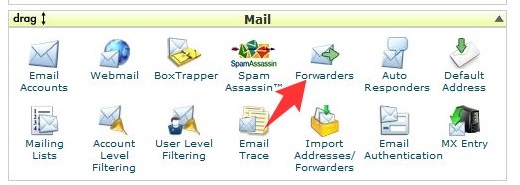
- Click on “Forwarders” in the Mail section
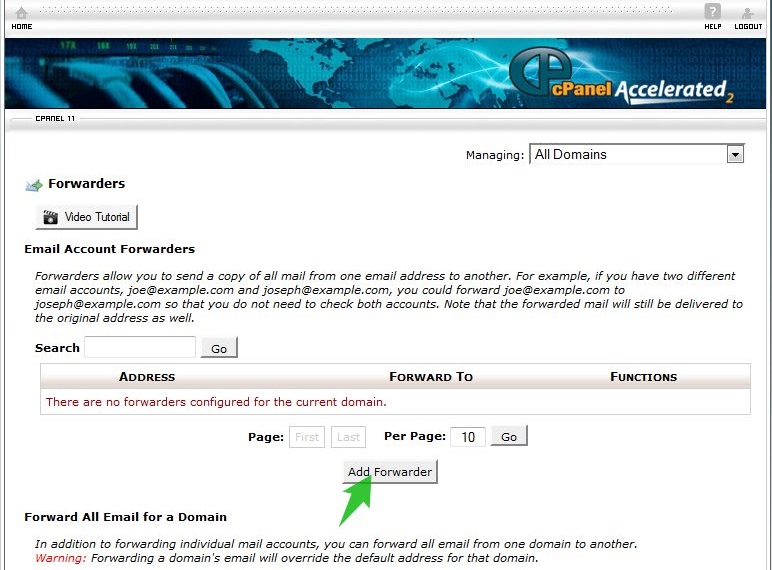
- To create an email Forwarding click on “Add Forwarder”
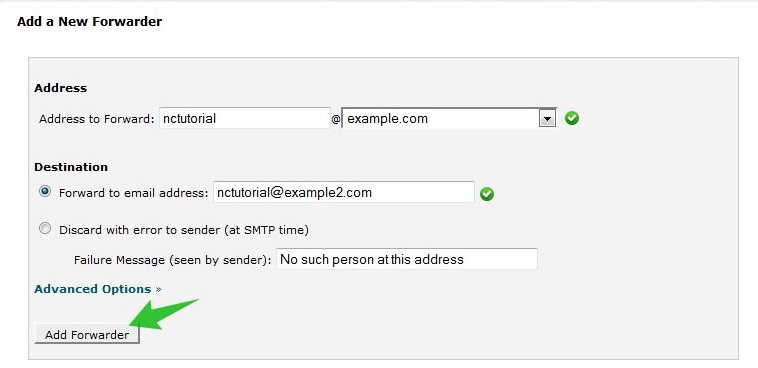
- If there is more than one domain under your cPanel, choose the necessary one from a dropdown menu. Hereinafter we will use a test email addresses nctutorial@example.com and nctutorial@example2.com.
To forward emails from one email address to another one:
- Enter the address you would like to forward from in the field “Address to Forward”. It can be both existing and non-existing email address. In our example it is nctutorial@example.com.
- Type email address you would like to forward your emails to into “Forward to email address” field. You can indicate any existing third-party email address here as well. In our example it is nctutorial@example2.com.
- Click “Add Forwarder”
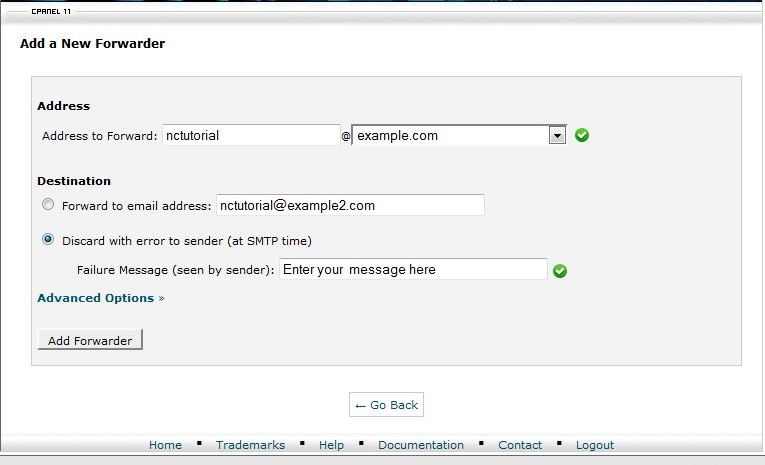
You can also discard the incoming messages and notify sender about this:
- Function “Discard with error to sender (at SMTP time)” allows you to discard the message if recipient’s email does not exist and return a bounce back email with the Failure Message to the sender. You can specify the text of message in the corresponding field.
In case you have set a forwarder for existing email box (created in cPanel), all the emails will be received to the both email addresses. If the forwarding has been created for a non-existing address all the emails will go only to “forward to” email box.
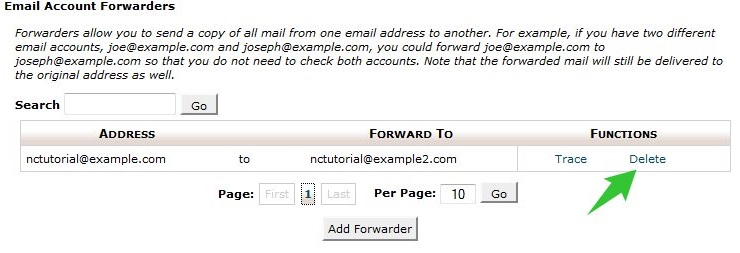
To remove the forwarder click “Delete” button next to your record under Function section.
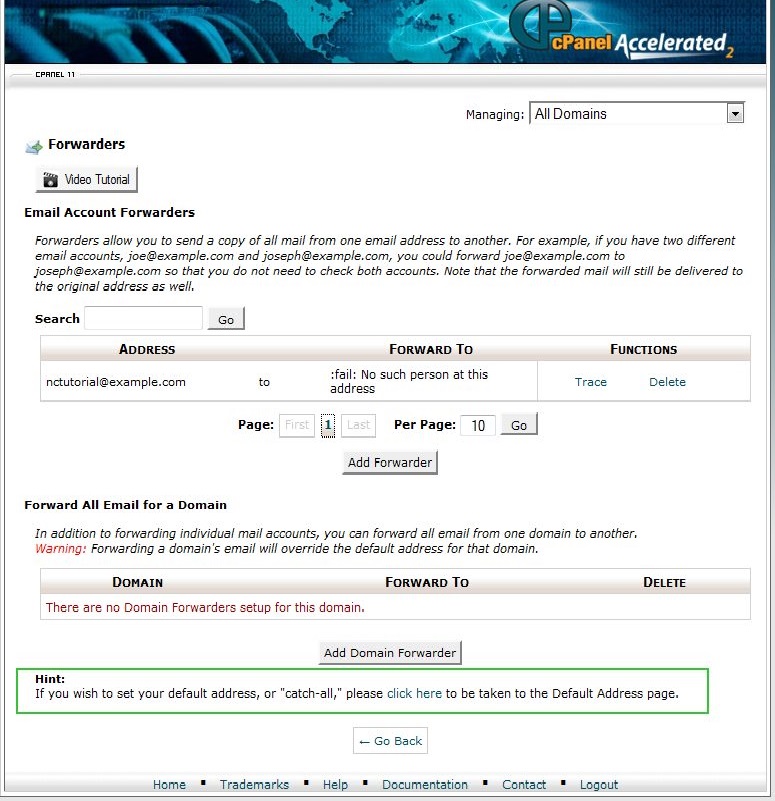
- To create “Catch all” email address click on the inscription option “Click here” in the Hint section.
(or using "Default Address" tool in cPanel)
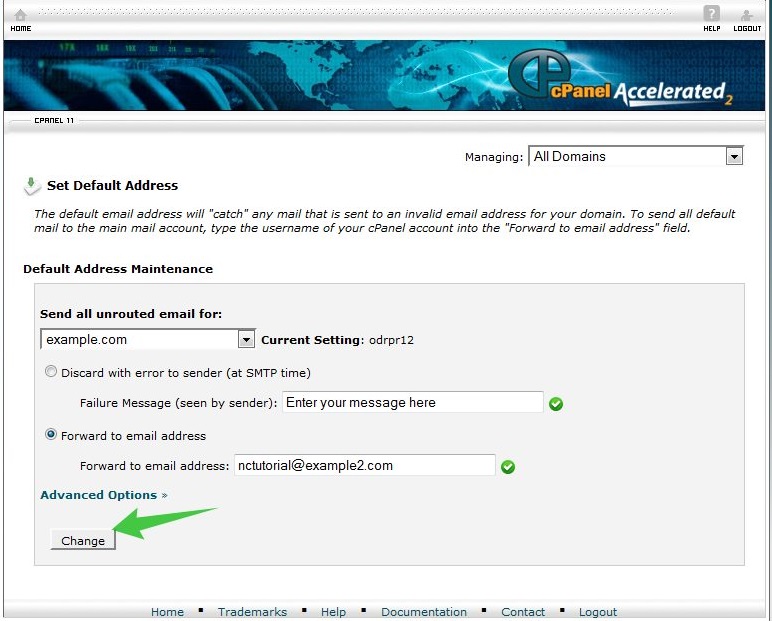
- Choose necessary domain in “Send all unrouted email for” in order to create the default email address which will "catch" any mail that is sent to an invalid email address on your domain.
- Enter the address you would like to forward your emails to into “Forward to email address” field.
In our example it is nctutorial@example2.com.
- Click on “Change” button
You can also forward all your emails to the system email account:
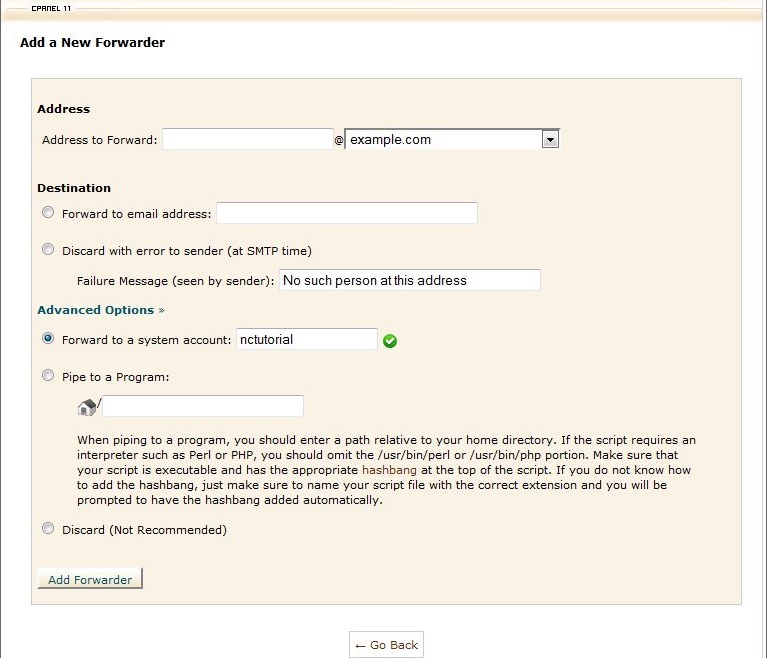
- To forward all emails to your system account, which is yourcPaneluser@yourdomain.com , click on “Advanced Options” and tick “Forward to a system account”. Your cPanel username will be indicated in the corresponding field. In our case it is “nctutorial”.
- Click “Add Forwarder”
Email Piping
The pipe to a program can route mail to any executable script within your home directory as a cPanel user, including executable scripts such as bash scripts, Perl scripts and PHP shell scripts.
- To pipe email to a program, click on “Advanced Options” and choose “Pipe to a Program”. Enter a path to your program into the field below.
- Click “Add Forwarder”
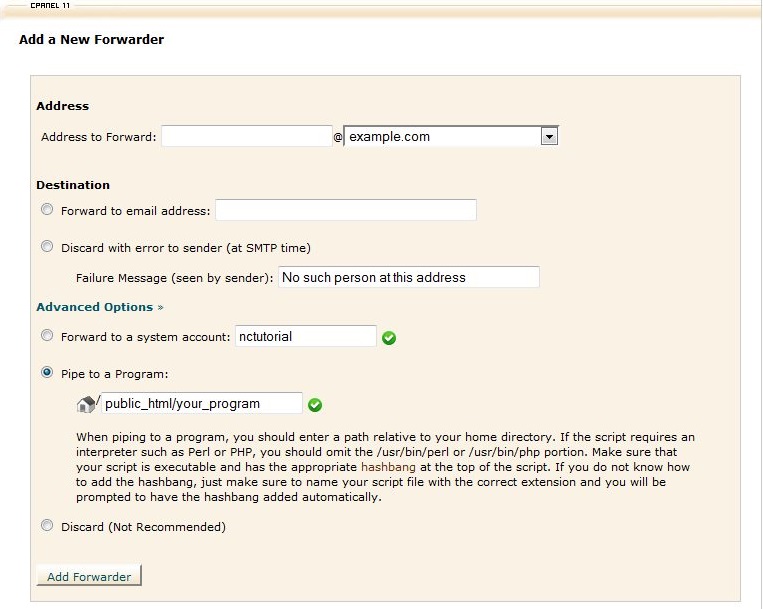
To discard all the emails sent to your address without any error message, click on “Advanced Options” and choose “Discard” button.
- Click “Add Forwarder”